Remove People from Photo
Paint over tourists or strangers, and AI fills in the background. Free, no sign-up, download as PNG.
Before and after: people removed with AI
Three real travel photos, edited with this tool. Drag the slider to compare.
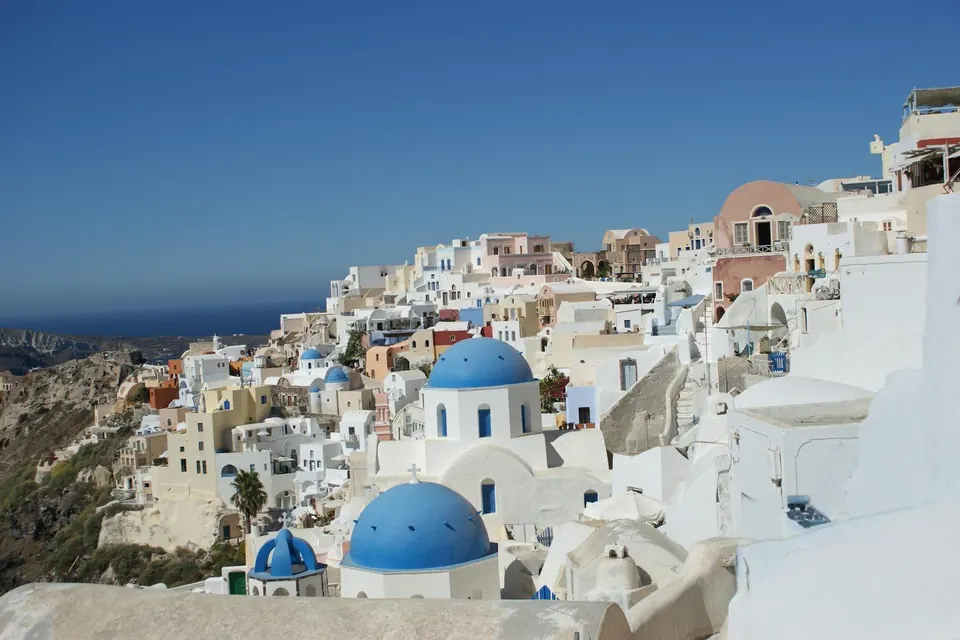
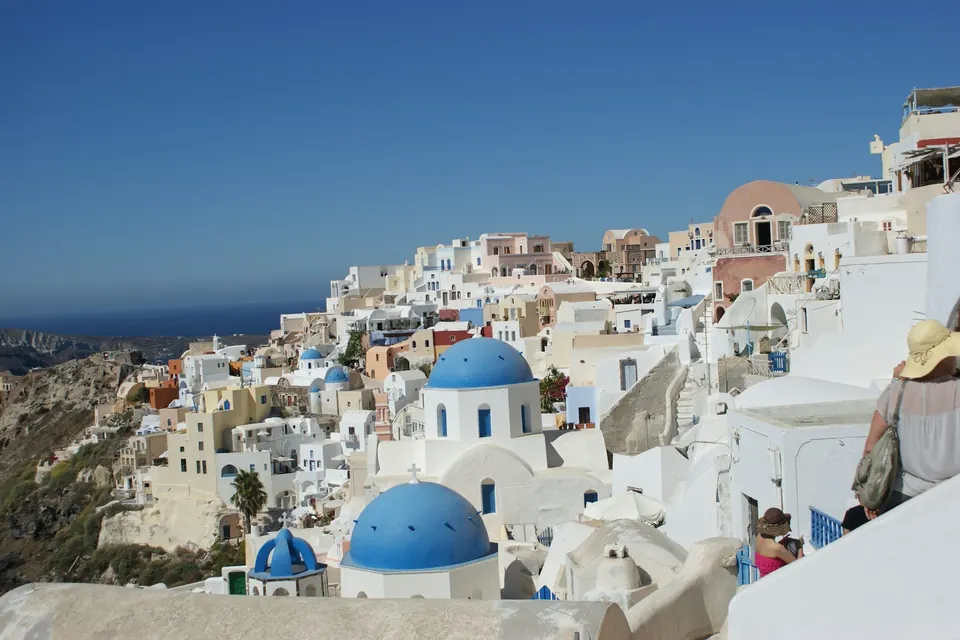 BeforeAfter
Tourists removed in Santorini
Three people removed. The white walls behind them are filled in.
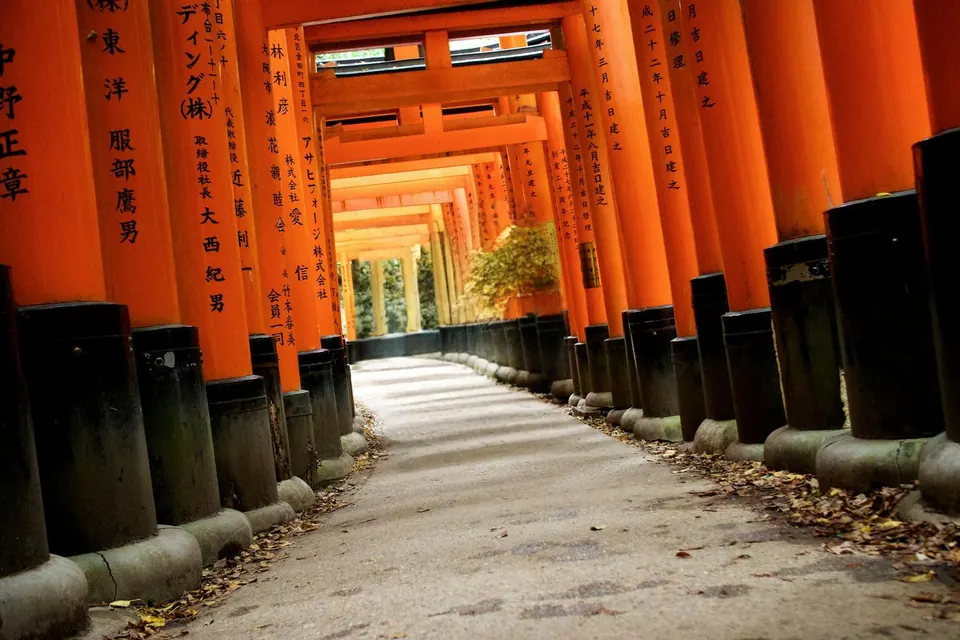
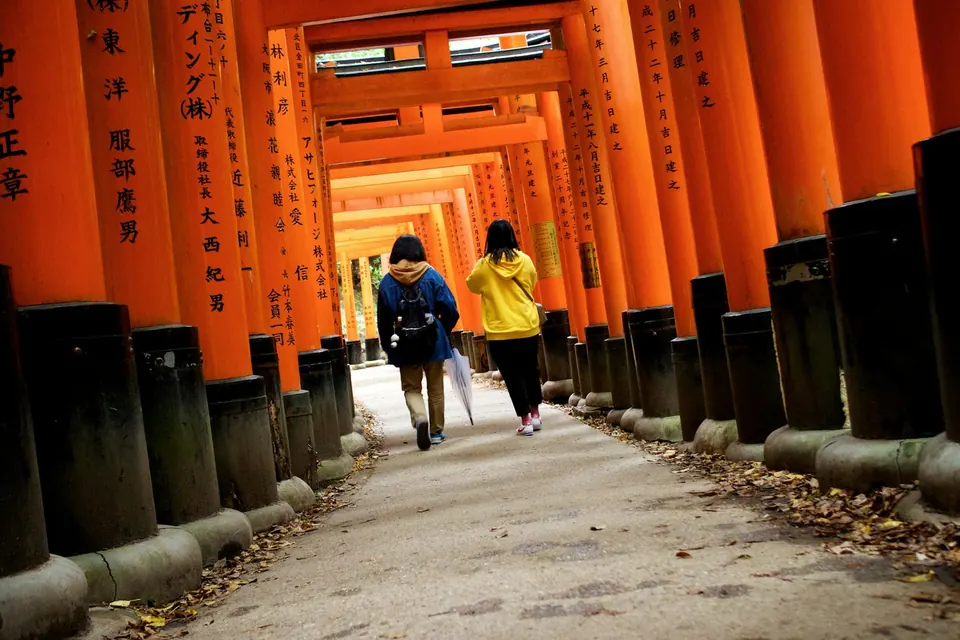 BeforeAfter
Visitors removed at a Kyoto shrine
Two people removed from the path through the torii gates.
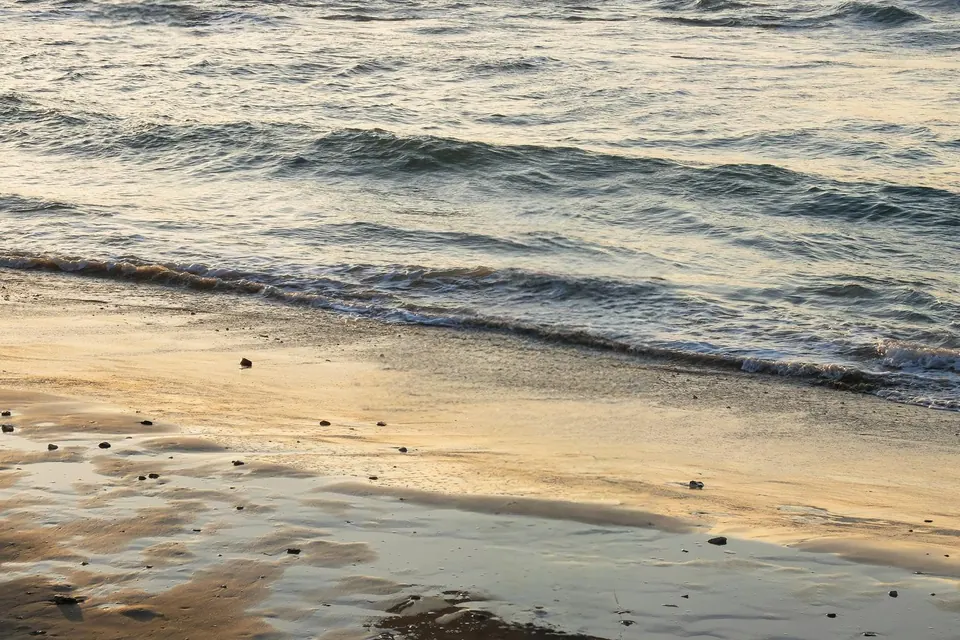
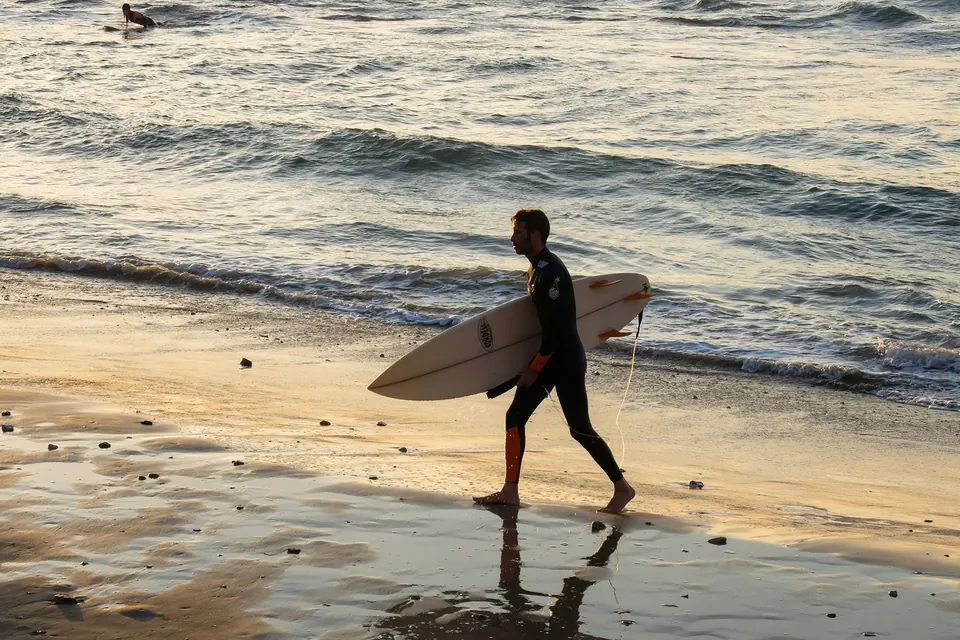 BeforeAfter
Surfer removed from a beach
The surfer, his board and his reflection are gone, and so is a second surfer in the water.
Results made with this tool. Original photos by Sheila C, Saara Sanamo and Ihor Saveliev on Unsplash.
In short
To remove people from a photo, upload it (JPG, PNG or WebP, up to 10 MB) and paint over each person you want gone. Paint a little past their edges and include their shadow. Then click Remove people. In 20–30 seconds, AI fills the painted area with background that matches the rest of the photo, such as sand, sky, grass or walls. Compare the result with the original using the slider, and download it as a PNG. It works best when people are small in the frame and the background is simple. Large crowds, or a person who fills most of the photo, are much harder.
How to remove people from a photo in 3 steps
Step 1: Upload your photo
Click Upload a photo, or drag a file onto the box. JPG, PNG and WebP files up to 10 MB work. Use the original photo, not a screenshot — it gives a cleaner result.
Step 2: Paint over the people
Brush over every person you want to remove. Go a little past their edges, and include their shadow, their reflection and anything they're holding. Use a bigger brush for large areas and a smaller one near things you want to keep. Undo takes back your last stroke; Clear starts over.
Step 3: Remove and download
Click Remove people and wait 20–30 seconds. On the result page, drag the slider to compare before and after, then download your photo as a PNG. There's no watermark.
Where this works best
Travel photos at busy landmarks
Remove tourists from photos of monuments, bridges or temples. Small people against stone, sky or water are the easiest to remove.
Beach and nature photos
Sand, water, grass and sky are easy to fill in, so strangers in the background usually disappear cleanly.
Street and building photos
Clear passers-by from streets and squares. Doors and windows stay straight if the person only covered a small part of them.
Family and group photos
Remove a stranger or an ex, as long as they aren't touching or standing in front of the people you want to keep.
Weddings and events
Remove a guest holding up a phone, or staff walking through the background of a special moment.
Home and rental listings
Remove people from photos of rooms and houses, so buyers or guests see only the space.
Tips for cleaner results
- 1
Paint past the edges
Paint a little beyond each person's outline. Small leftovers, like a strand of hair or the tip of a shoe, are what usually make an edit look fake.
- 2
Include shadows and reflections
A shadow with no one casting it gives the edit away. Paint over shadows and reflections too.
- 3
Remove a few people at a time
For crowds, remove the closest people first. Then click Keep editing on the result page and remove the next few. Smaller areas give better results.
- 4
Don't paint over what you want to keep
Everything you paint gets replaced. Use a smaller brush near railings, signs or other people.
- 5
Use the original photo
Start with the photo from your camera or phone, not a screenshot or a copy sent through a chat app. A sharper photo gives a cleaner result.
The honest limits
The AI does a good job, but not every time. Here's where it struggles:
- It guesses what was behind the person. It can't recover what was really there. A sign or a statue hidden behind someone is replaced with a best guess.
- People close to the camera are hard to remove. If a person takes up more than about a third of the photo, the result often looks blurry or patchy.
- Crowds rarely clear in one go. Emptying a packed square usually leaves blurry spots. Remove a few people at a time, and expect that some photos won't come out fully clean.
- Overlapping people are hard to separate. If the person you remove is touching someone you keep, the edges of the person you keep may get damaged.
- Patterns and lines can bend. Text, tiles, fences and long straight lines behind the person may come out bent.
- Free downloads are 1536 pixels on the longest side. That's fine for phones and social media, but not for large prints.
Frequently asked questions
Is it free to remove people from photos here?
Yes. You get 2 free removals every day, with no sign-up and no watermark. The count resets at midnight UTC. One click of Remove people counts as one removal, however many people you painted over.
What happens to my photos?
We don't store them. Your photo is sent to our AI service, edited and sent back to you, then deleted within 24 hours at the latest. We never use your photos to train AI.
Which file types and sizes can I upload?
JPG, PNG and WebP, up to 10 MB. Large photos are reduced to 1536 pixels on the longest side, and the result downloads as a PNG at that size. iPhone photos are usually converted to JPG automatically when you pick them.
How long does it take?
Usually 20–30 seconds. Keep the page open until the result appears.
Can I remove several people at once?
Yes. Paint over all of them and click Remove people once. For big groups, you'll get better results if you remove a few people at a time.
Does it work on iPhone and Android?
Yes. It works in Safari, Chrome and other mobile browsers. No app needed — just paint with your finger.
Why was my photo rejected?
We automatically block photos that may contain nudity or sexual content, and files that aren't real JPG, PNG or WebP images. If a normal photo was blocked by mistake, email us at hello@removefromphoto.com.
Can I use the edited photo commercially?
Yes. Your photos and results belong to you, and we add no watermark. Just make sure you have the right to use the original photo, and don't use edits to mislead people, for example as fake evidence.
Ready to try? Go back to the editor or use the free AI people remover on our homepage.